Skip to main content
How to Encrypt an Email in Outlook Desktop Application
- Create a new email message
- Click on the Options tab
- Look for the Encrypt button and click the drop down arrow
- Encrypt or Encrypt-Only: This message is encrypted, recipients cannot remove this encryption.
- Do Not Forward: Prevents recipient from forwarding, printing and copying the email.
- Confidential \ All Employees: Includes Do Not Forward restrictions and prevents non-domain recipients from viewing.
- Highly Confidential \ All Employees: Includes Do Not Forward restrictions while allowing domain recipients to view, edit and reply.
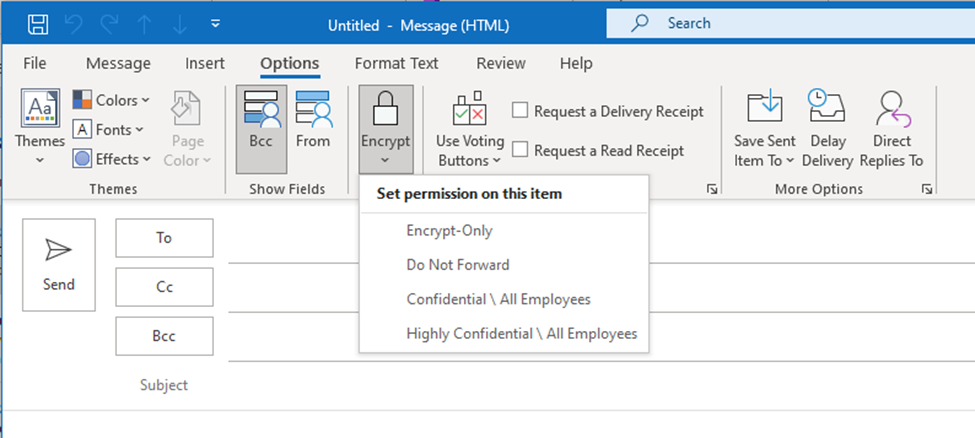
- Select the applicable permission
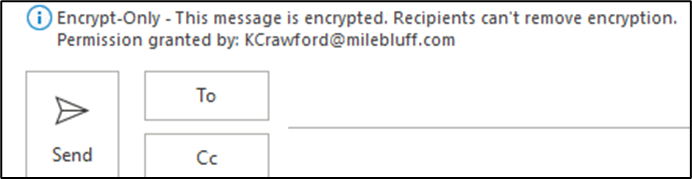
- Once you set the permission, it will show on the email above the To: box what permissions you have set.

Comments
0 comments
Please sign in to leave a comment.